> ## Documentation Index
> Fetch the complete documentation index at: https://carat.im/docs/llms.txt
> Use this file to discover all available pages before exploring further.
# Product shots
> Easily create various commercial product shots from a single product photo.
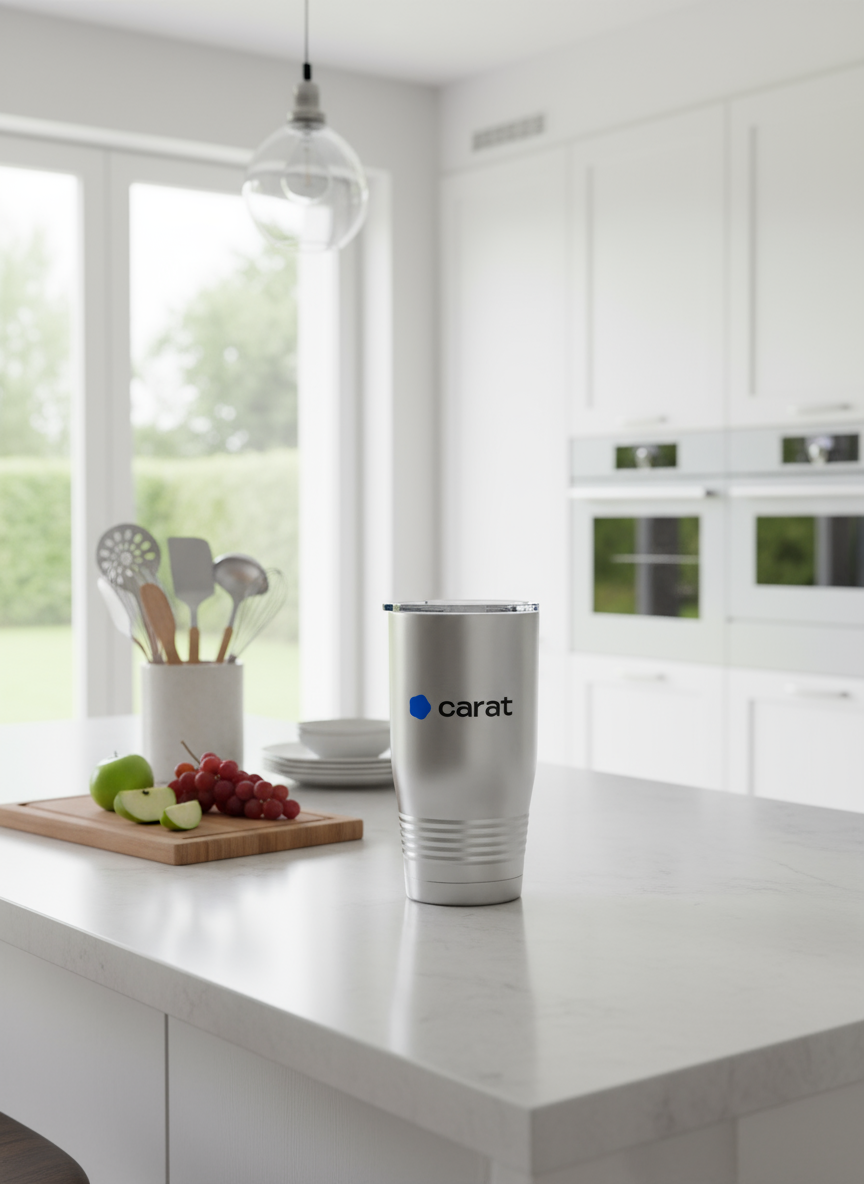
This guide walks you through the workflow of planning concepts from a single product photo, naturally compositing it onto desired backgrounds, and expanding to various ratios or video.
 First, create a [high-quality](/en/features/image/image-upscaling) product [cutout](/en/features/image/background-removal) to use for compositing.
```text theme={null}
Remove the background from this image and improve the quality.
```
Plan background concepts for placing the product with Carat AI.
```text theme={null}
Suggest 3 background concepts for placing this cake cutout.
```
Combine the cutout with the planned concept to generate the final product shot.
```text theme={null}
Place my matcha cake cutout naturally on a 'sunny cafe table'. Make it look like a real photo.
```
You can change the completed product shot to different ratios or create simple videos.
**Change ratio:**
```text theme={null}
Create the product shot I just made in Instagram 1:1 ratio and shorts 9:16 ratio.
```
**Create video:**
```text theme={null}
Create a 3-second video with steam rising from the 1:1 ratio image.
```
**Looking for an easier way?**
Try the **'Create Product Mockup Image'** feature in the [Mini Agent](/en/how-to-use/mini-agent) menu.
First, create a [high-quality](/en/features/image/image-upscaling) product [cutout](/en/features/image/background-removal) to use for compositing.
```text theme={null}
Remove the background from this image and improve the quality.
```
Plan background concepts for placing the product with Carat AI.
```text theme={null}
Suggest 3 background concepts for placing this cake cutout.
```
Combine the cutout with the planned concept to generate the final product shot.
```text theme={null}
Place my matcha cake cutout naturally on a 'sunny cafe table'. Make it look like a real photo.
```
You can change the completed product shot to different ratios or create simple videos.
**Change ratio:**
```text theme={null}
Create the product shot I just made in Instagram 1:1 ratio and shorts 9:16 ratio.
```
**Create video:**
```text theme={null}
Create a 3-second video with steam rising from the 1:1 ratio image.
```
**Looking for an easier way?**
Try the **'Create Product Mockup Image'** feature in the [Mini Agent](/en/how-to-use/mini-agent) menu.