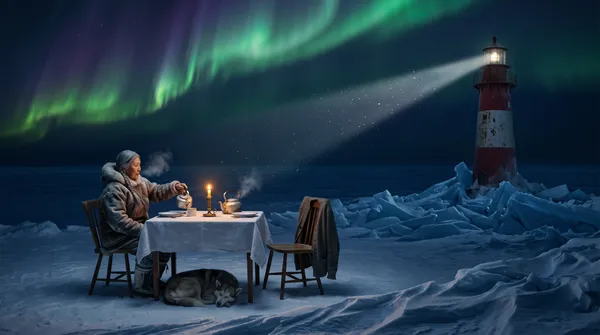
Nano Banana 2.1 Image Generator
Example results
Nano Banana Image Generator and Editor
How to use Nano Banana on Carat AI
Nano Banana is the name Google gave to the Gemini image model, and it's built for two jobs: creating new images from a text prompt and editing existing photos with plain-language instructions. Carat AI's Nano Banana image generator puts Nano Banana 2.1 into a focused mini app, so you can go from idea to file without hunting through menus. Describe the picture you want, and if you're editing a photo or want the result to follow a specific person, product or style, add up to 4 reference images. Resolution goes up to 4K, and you can pick from 15 aspect ratios, so the image comes out in the shape you actually need instead of being cropped later and losing its composition. If you've been looking for how to use Nano Banana in a simple, step-by-step way, this is it.
01
Write a prompt and add references
Describe the subject, what it's doing, where it is and the mood you want. To edit a photo or guide the look, upload up to 4 reference images along with your prompt.
02
Choose resolution and aspect ratio
Set the resolution up to 4K and choose from 15 aspect ratios, from tall vertical frames to square and wide formats.
03
Generate and download
Hit generate, review the result and download the image you want to keep. If something's off, adjust the prompt and run it again.
What you can make with the Nano Banana editor
Product shots
— Upload a product photo as a reference and describe a new background and lighting for store listings or ads.
Photo edits
— Swap a background, change an outfit or add objects by describing the change in words instead of masking by hand.
Consistent characters
— Reuse the same reference images to keep a character or brand mascot recognizable across a whole series of scenes.
Social and print formats
— Output one idea as a vertical story cover, a square feed post and a wide banner, and use 4K when the image is headed for a poster or print.
FAQ
What is Nano Banana?
×
Nano Banana is Google's Gemini image model. It generates images from text and edits photos from natural-language instructions, which is why you'll also see it called Gemini Nano Banana.
Which version of Nano Banana does this app use?
+
This app runs Nano Banana 2.1. If you're looking for Nano Banana Pro, Carat AI has a separate Nano Banana Pro page.
Can I edit my own photos with Nano Banana?
+
Yes. Upload the photo as a reference image and say what should change and what should stay, for example: "keep the person as is and replace the background with a beach at sunset."
How many reference images can I add?
+
Up to 4. When you use more than one, tell the model what each image is for, such as "the person from the first image holding the bag from the second image."
What resolution and aspect ratios are available?
+
You can generate up to 4K and choose from 15 aspect ratios. The frame is set in the settings, so you don't need to describe the size in your prompt.
How do I write a good Nano Banana prompt?
+
Start with who or what is in the image, what they're doing and where. Then add style, lighting and framing. The more specific you are, the closer the result gets to the picture in your head.


© 2026 Paradot Inc. All rights reserved.


