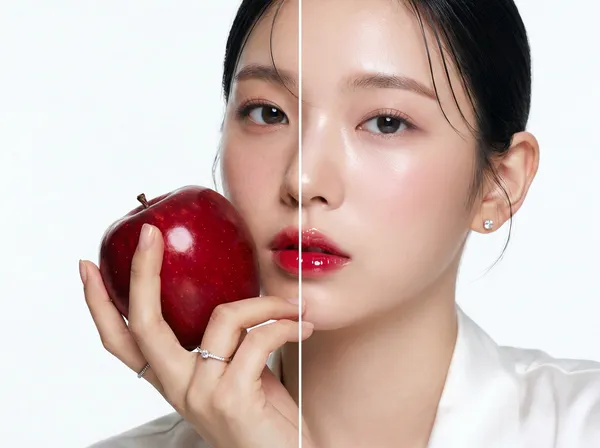
Skin Enhancer
Example results
AI Skin Enhancer: Give Waxy AI Skin a Real Texture
How it works
AI portraits often get everything right except the skin. The face, the light and the pose look believable, but the skin is so smooth it reads as wax or plastic, and viewers spot it instantly. Heavily retouched photos have the same problem: once the pores and fine lines are gone, the person stops looking real. Carat AI's skin enhancer works in the opposite direction from a beauty filter. Instead of smoothing skin further, it replaces flat, over-processed skin with realistic skin texture — visible pores, natural grain and fine detail — so the portrait looks like it came out of a camera. Upload up to five portrait images, click Create, and download the results. There is no prompt to write and no slider to tune, so it works as a quick AI skin retouching step at the end of any portrait workflow.
01
Upload your portraits
Add up to five portrait images. They can be AI-generated characters or real photos that were smoothed too much. Pick images where the face and skin are clearly visible so the change is easy to judge.
02
Click Create
The AI swaps plastic-looking skin for realistic skin texture. There are no settings or prompts to fill in.
03
Download realistic skin
Compare each result with the original and download the images you want to keep.
Use cases
Fix the waxy "AI skin" on portraits made with image generators before you post them
Keep skin texture consistent across a set of AI influencer or virtual model images
Bring natural skin back to profile photos and selfies that a retouching app over-smoothed
Make ad mockups, product-page model shots and storyboard frames look like real photography
FAQ
What does the AI skin enhancer change?
×
It changes skin texture. Skin that looks too smooth, waxy or plastic is replaced with realistic skin that shows pores and fine detail.
Will it make my skin smoother?
+
No — it does the opposite. It is not a smoothing or beauty filter; it adds natural texture so the skin looks like it was photographed.
How many images can I upload at once?
+
Up to five portrait images per run, which is handy when you need several shots of the same character to match.
Does it work on AI-generated images?
+
Yes. Fixing plastic skin on AI-generated portraits is the main use. It also works on real photos that were retouched too heavily.
Can it remove blemishes, reshape faces or add makeup?
+
No. This tool focuses on skin texture only. It does not remove blemishes or acne, reshape facial features or apply makeup.
Do I need to write a prompt?
+
No. Upload your images and click Create. There are no prompts or strength settings to configure.


© 2026 Paradot Inc. All rights reserved.


