WiFi Information Sign
Design a readable WiFi information sign with AI prompts and practical security checks.
2026.07.16
Haz “WiFi Information Sign” justo como lo quieresCrea tu propio “WiFi Information Sign”
Pídelo en lenguaje natural: Carat genera imágenes y vídeos optimizados para ti.

Empieza ya con 100 créditos gratis al día
Wi-Fi Notice
Purpose and scope of a WiFi information sign
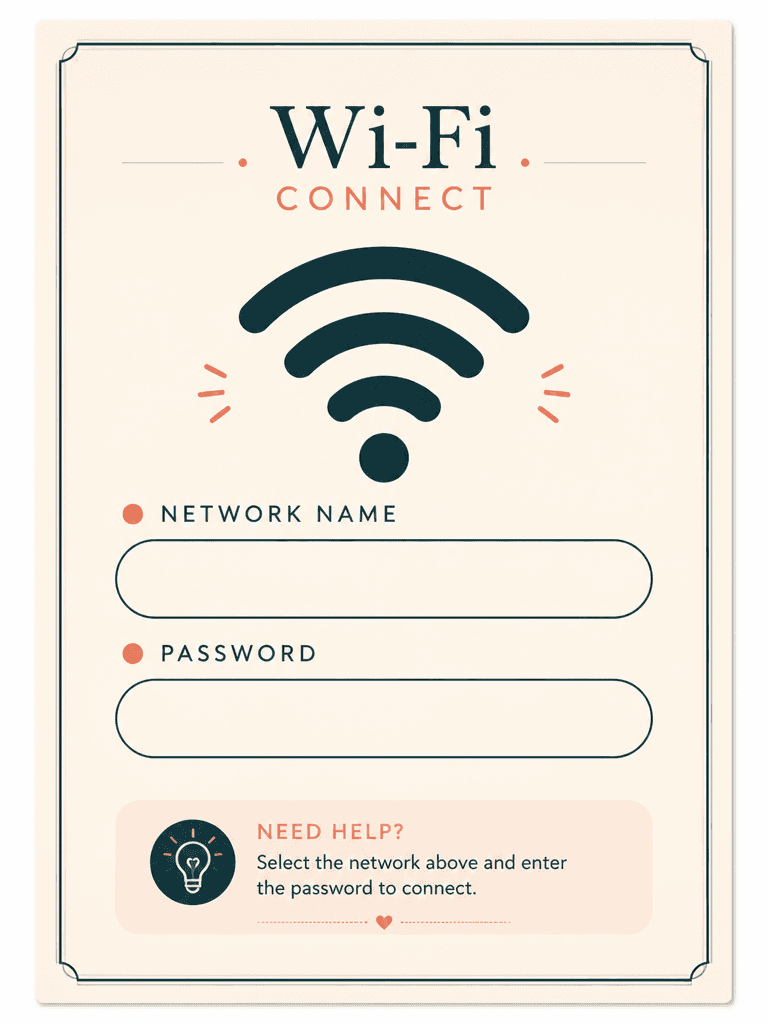
WiFi Information Sign AI prompts organize wireless access details for visitors in cafes, accommodations, offices, and event spaces. Separate the network symbol, SSID, password, connection help, and support contact areas, but never invent live credentials. An operator must add verified values during editing and confirm whether the guest network is properly isolated from internal systems.
Common placement scenarios
Use the format for an A5 cafe stand, hotel room card, coworking desk, checkout counter, meeting room, or temporary event sign. Type size and contrast should match viewing distance and lighting. If several networks exist, prioritize the approved guest connection and keep staff systems off the public sign. A short troubleshooting block can reduce repetitive support requests.
A readable information hierarchy
A large wireless signal icon identifies the purpose immediately. Place the network name and password in separate central fields, with a smaller lower zone for security notes or assistance. Cream, deep teal, and a restrained coral accent create clear levels on a small print. Preserve safe margins so decoration, stands, and print trimming do not interfere with credentials.
Prompt construction and security review
Specify ratio, venue, icon scale, number of fields, palette, border, editable zones, and exclusions. Do not generate a real SSID, password, admin address, phone number, QR code, or brand mark. The final editor should test capitalization, special characters, disclosure scope, and any QR destination on a guest device. Inspect icon symmetry, border continuity, perspective, contrast, and trim margins before printing.
Related prompts
Preguntas frecuentes
Show only the approved guest network name, password, concise help, and a verified support method.
No. Keep live credentials out of generation prompts and add them only in a controlled editing step.
Display the approved guest connection and keep internal staff network information separate.
Add it after an owner verifies the destination and tests it on a typical guest device.
Print at actual size and test readability at the expected distance and lighting level.
Keep editable fields in the master template, replace verified values, and remove obsolete signs promptly.
Test capitalization, special characters, connection success, QR destination, contrast, and trim margins.