

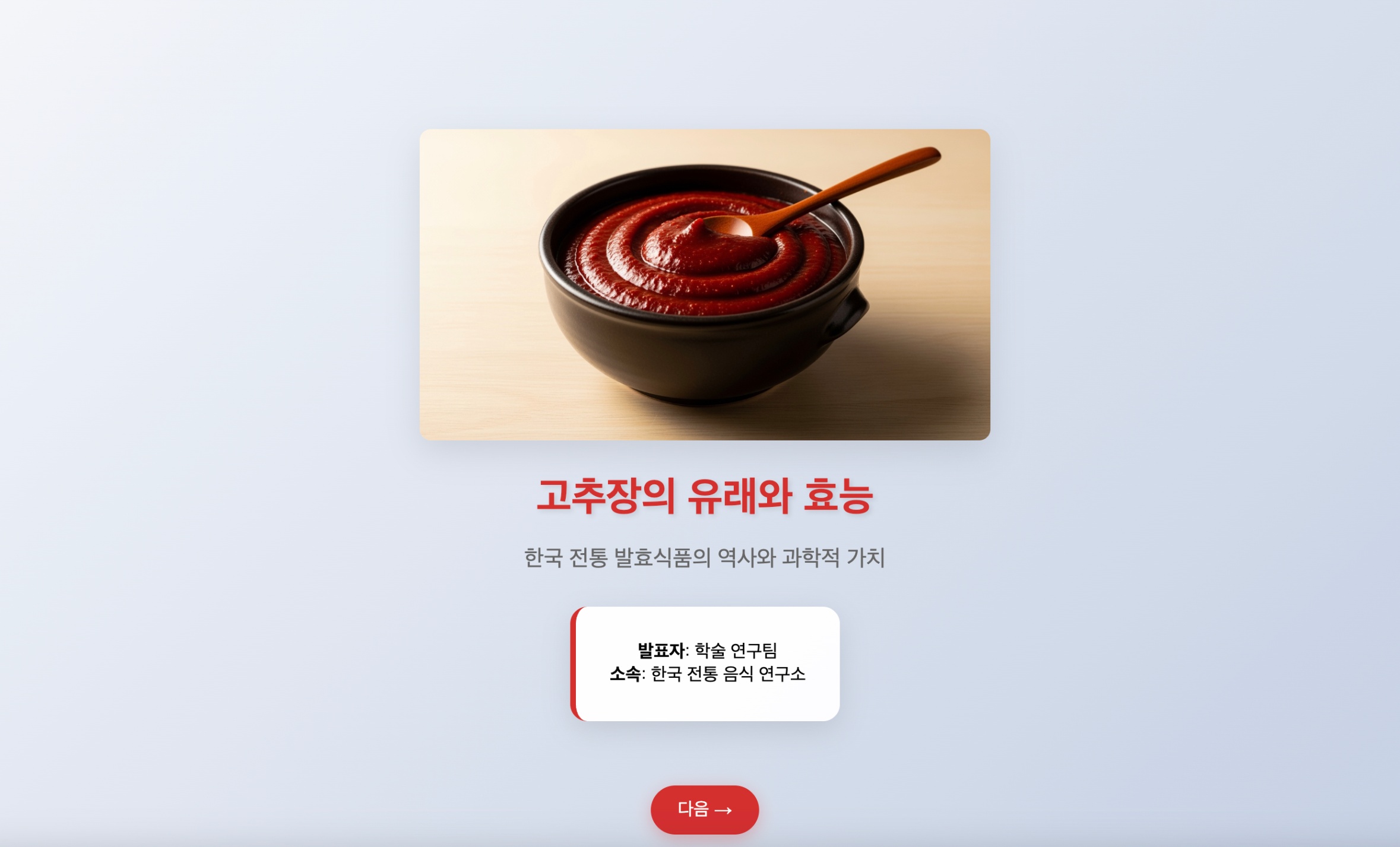
1
Run 'Create PPT' Mini Agent
Select the ‘Create PPT’ template from the Mini Agent menu.
2
Enter basic information
Answer the basic information (topic, style, etc.) that AI asks.Topic:Style:
3
Review and edit first draft
When Carat AI suggests a plan (7-slide text and image draft), review the content and request edits directly through conversation.Edit image:Edit text:Edit content:
4
Download HTML file
When all slides are satisfactory, request final completion from AI.
- “Great. Finalize it as is.”
- When Carat AI provides a
[Download Completed Presentation]link, click to open the HTML file. - Open the downloaded HTML file in a browser (Chrome, Edge, etc.) and use the left/right arrow buttons to navigate the presentation.
Why HTML file format?Carat AI provides presentations in HTML format that can be run directly on the web. If you want to convert to PowerPoint file, you can use a separate conversion tool or use the HTML as-is for presentations.